
You may want to export and import a module from one system to another. For example, from a training or test system into a live system. This avoids any duplication in recreating components on multiple systems and allows you to develop in a safe environment before going live or to import an Advanced Legal Case application into a new system.
Important We recommend that you do not make changes in a live system, as this could result in inconsistencies between systems and prevent successful imports. If this is unavoidable, then you must create a new test/development system by taking a copy of the live system.
Fig. Expected strategy diagram
The export process creates a copy of all the components in the selected module and saves it to a file, which you can later import into another database. No data is removed from your module by the export. All the components that you have created in Designer Studio for this module and the related settings (i.e. association roles, note types, address types, etc.) are saved to a .udm file.
Most components will overwrite any existing records in the destination system on import, but there are some exceptions. For information on the rules applied to exporting and importing user-defined components and how they affect your database, see Export and import behaviours.
In this section:
On the File tab, click Modules (if not already selected). The list of current modules is displayed.
Under Modules, highlight the module you want to export and click Export the Selected Module.
When the Save As dialog box opens, specify a location for the export file and change the file name as required. By default, the file name takes the name of the module.
Click Save to start the export. A progress bar is displayed.
When the export has completed successfully, click Close.
If errors occurred during the export, then you will be notified with a message that contains the details of the problem(s).
On the File tab, click Modules. This is the default selection.
Under Module Actions, click Select a Module to Import.

When the Open dialog box opens, select the export file you want to import and click Open. Information about the module is displayed under Module Import and you are asked if you want to import the selected module.
Click Import Selected Module to start the import.
Next, you are presented with a series of screens so you can choose how to handle the import of time types, document templates, and running processes. For more details, please refer to the procedures below.
A progress bar is displayed while the import proceeds. When the import has completed successfully, click Done.
If errors occurred during the import, then you will be notified with a message that contains the details of the problem(s).
When the Map Time Types dialog box opens, map the time types in the export file to the existing time types in the destination system
Under Firm Time Types, use the drop-downs to map your time types to those listed under Time Types to be Imported from the export file.
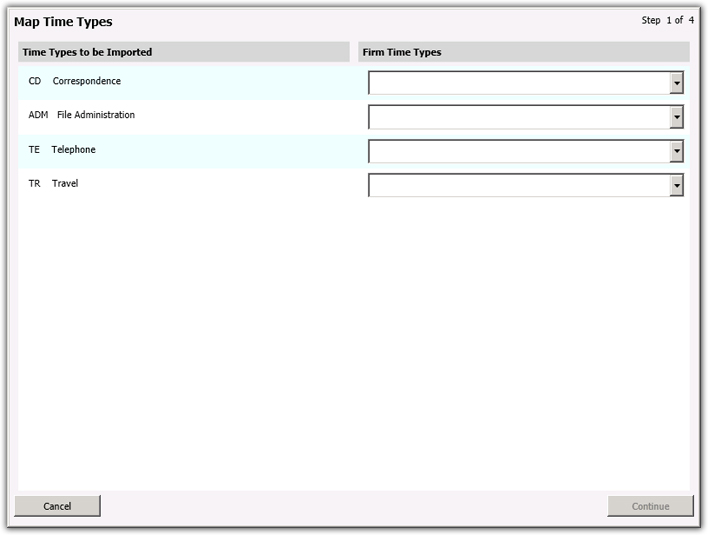
Click Continue. On import the time type codes from the destination system replace the ones in the Post Time activities in workflow.
To configure document templates on import:
When the Import Document Templates dialog box opens, choose how to handle document templates. You can import new and updated templates only or import all templates and you can also decide whether to overwrite or preserve the templates you have changed.
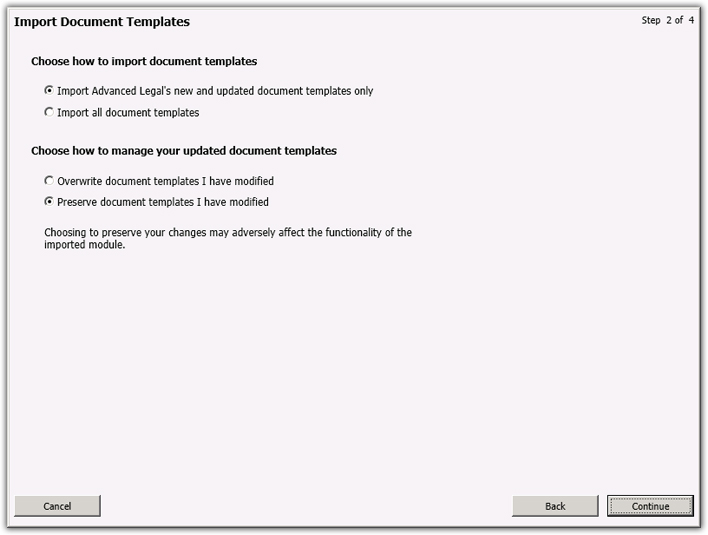
Under Choose how to import document templates, choose from the options below:
Import Advanced Legal's new and updated document templates only. (Default setting) Specifies that you only want to import new and updated templates.
Import all document templates. Specifies that you want a full import of new and old templates.
Under Choose how to manage your updated document templates, choose from the options below:
Overwrite document templates I have modified. Specifies that you are happy to overwrite any templates that you have changed.
Preserve document templates I have modified. (Default setting) Specifies that you want to retain any templates that you have changed.
Based on the options described above, the valid combinations are:
Import Advanced Legal's new and updated document templates only and Preserve document templates I have modified. (Default setting) This combination can be used when Advanced Legal have updated the document templates, but you want to preserve any template modifications you have made. A list of some templates that have not been updated is displayed on completion.
Import Advanced Legal's new and updated document templates only and Overwrite document templates I have modified. This combination can be used when Advanced Legal have updated the document templates and you are happy to overwrite any templates you have modified.
Import all document templates and Preserve document templates I have modified. This combination can be used when a clean install is required or you want to import document templates which have been created in a different system, but you want to keep any templates you have modified. A list of the templates that have not been updated is displayed on completion.
Import all document templates and Overwrite document templates I have modified. This combination can be used on a first install or when you are importing a module from a test system to a live system.
Click Continue.
If you choose to preserve document templates that you have modified, you will receive a message showing the document templates that have not been imported.
To update running processes on import:
When the Import Updated Processes dialog box opens, review the list of updated processes and choose whether you want to modify or preserve the processes currently running.
Under Changed Items, work down the list clicking Apply or Preserve for each entry.
Apply. Changes all processes, including those currently in progress.
Preserve. Retains processes currently in progress and only applies the changes to processes started from this point forward.
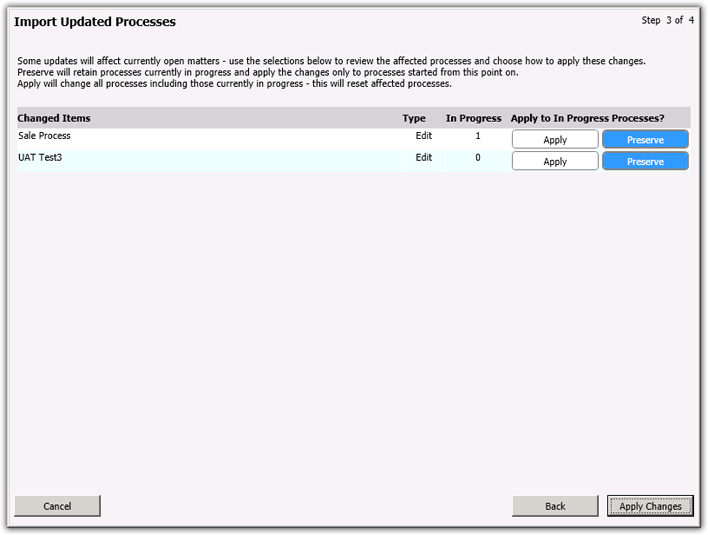
Type. Indicates the type of amendment, e.g. Edit, New, or Delete.
In Progress. Indicates the number of matters for which the process is running.
For more information about processes, please refer to the Processes section.
Click Apply Changes. Once all the updates are complete, an email will be sent to the Case developer to detail the matters where the running processes were modified or preserved.
Note An email will only be sent if the developer has an email assigned to them within ALB.
Notes
Only entire modules can be exported and imported.
Modules cannot be exported with or imported over unsaved changes.
Open modules (with saved changes) are automatically closed when a module is imported.