The matter inception workflow enables you to record extra information over and above that which is required when creating a matter using the standard PMS functionality. The additional steps have been pre-defined by Advanced Legal, but they can be customised to your own requirements. Here's a step-by-step guide to what's involved.
Important Make sure the Create Matter workflow is attached to the Create Matter Workflow system parameter before proceeding. Without this, the Matter Inception workflow will not start.
To create a new matter:
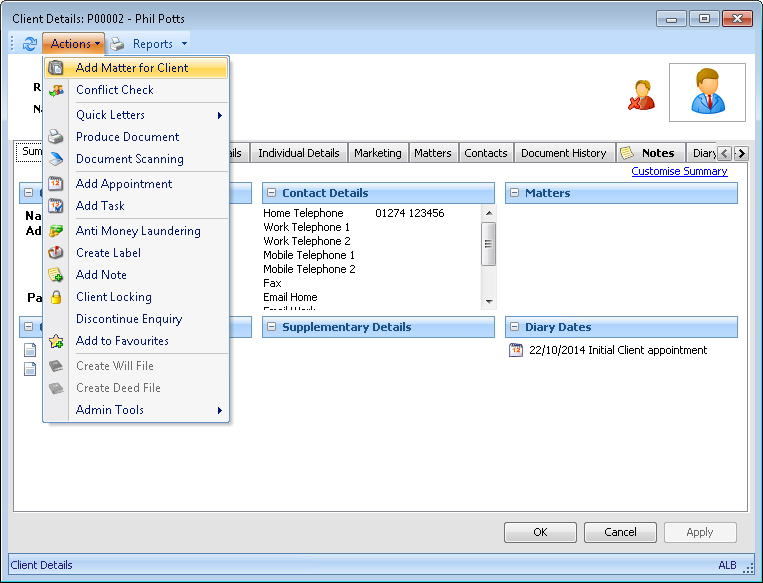
In the Client Details screen, click Actions » Add Matter for Client.
Fig. Add Matter For Client command
A check is made to see if the client has an active enquiry and if so a message is displayed. Click Yes to upgrade the enquiry.
Fig. Upgrade Enquiry message

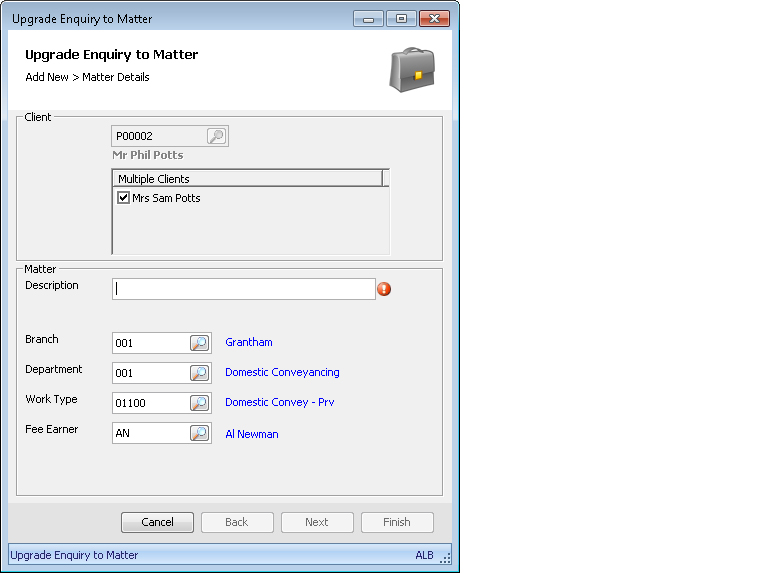
When the Upgrade Enquiry to Matter dialog box opens, the relevant client(s) are pulled through and displayed under Multiple Clients, along with defaults from the logged in user, e.g. branch, fee earner. Under Matter, type the matter's description and click Next.
Fig. Upgrade Enquiry to Matter dialog box
Click Finish. At this stage, the Matter Details screen opens and the matter inception workflow automatically starts. When the Task Pane opens, follow the on screen prompts to perform these tasks:
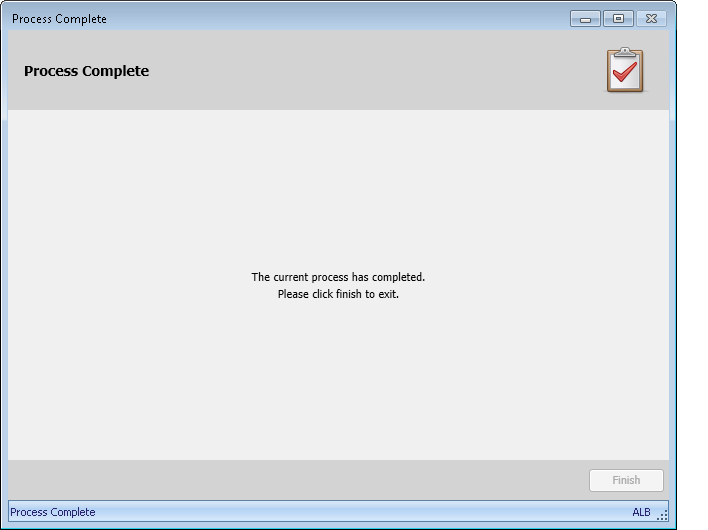
When the Process Complete screen opens, click Finish to close the Task Pane. The matter inception workflow is now complete and the matter is saved.
Fig. Process Complete screen
Notes
Matter inception tasks can be paused at any time. This is particularly useful if, for example, you are waiting for information or authorisation.
A case application (e.g. conveyancing) can be automatically started after the matter inception has completed. However, you will need to customise the workflow to do this or speak to your account manager about Advanced Legal providing this service.