|
|
|
|
Batch Details shows information relating to the currently selected Batch.
These instructions only apply if your system has been set up for using batches.
Selecting a batch before posting
Each time you close the Accounts application, the system resets to having no batch selected (N/A), and you will need to select or create a batch before you can make a posting.
If you start posting without opening a batch, then you will be prompted to select or create one before you can continue.
Open Accounts.
On the Accounts Home menu, click  Select Batch.
Either:
You can then view the details of the batch.
Once you have selected a batch, the details are displayed below the ribbon. You can close the Batch Details dialog as the batch will remain open, and reopen it by clicking the Batch No: link below the ribbon.
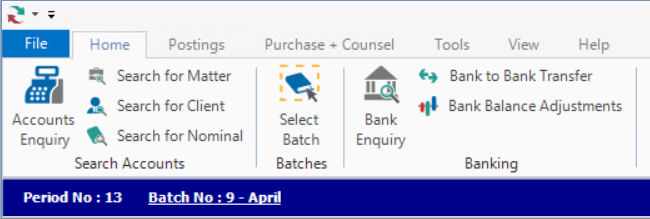
You can now post to the batch.
Click Select Batch  at the end of the Current Batch field.
Double-click the batch you want to select.
Click New  .
.
Enter the Description of the batch.
Enter the No of Items if you know how many items you will be adding to the batch.
Enter the Total Amount if you know the total value of items you will be adding to the batch.
Click OK to return to Batch Details. The new batch is displayed with the next sequential batch number.
|
© Advanced Legal, Feb 2016 • Terms of use • Contact us |
|