|
|
|
|
The Franchise Reports must be run on a monthly basis in order to comply with your franchise requirements. Their rules are simple, no CMRF / CMSF no contract payment next month.
CMRF and CMSF
These reports are run from your Legal Services SPAN matter and you will need to produce these reports for each of your branches on different Legal Services SPAN matters.
Open your SPAN Legal Services matter in Civil PF Billing.
The Claim Details tab displays which month the next Consolidated Matter Report Form and Consolidated Matter Start Form reports will be produced for. If you produce the reports before the month end has been reached you will get a message to say that the date is in the future are you sure you wish to continue.
The Reports Menu has the option to produce interim reports throughout the month.
To produce your CMRF, CMSF and other month end reports click on the Claim menu and select Submit Claim.
If you do Immigration / Asylum work then you will be asked to complete the following information:
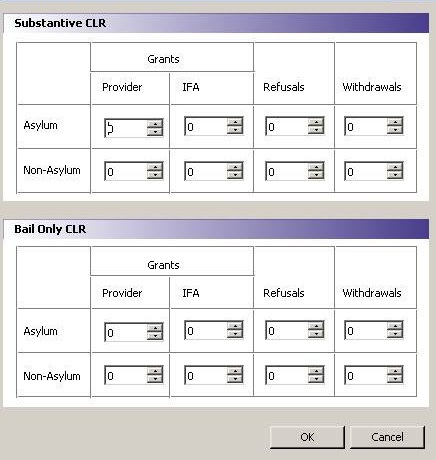
Enter the relevant information and select OK.
Your Consolidated Matter Report Form will now be completed for you and displayed on the screen. The system creates the CMRF based on the type of work you have a franchise in and includes all claims produced and not included on a previous CMRF and CMSF since you last produced your monthly reports.
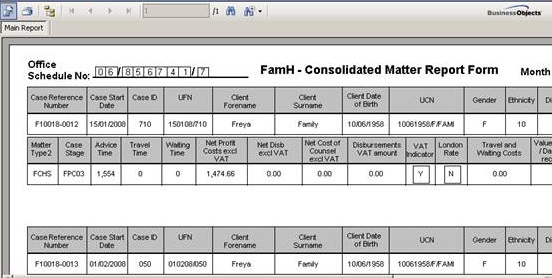
Print off the required number of copies and close the form. On closing you are asked if you want to save it to History. If you say “No” to saving in history, you will have to reproduce the claim at a later date.
Once the CMRF(s) have been saved to the Document History, the system will then produce your CMSF.
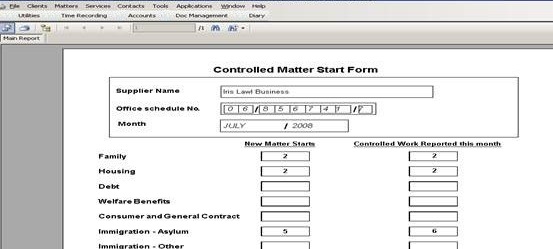
Print off the required number of copies and close the form. On closing you are asked if you want to save it to History. If you say “No” to saving in history, you will have to reproduce the claim at a later date.
Once your CMRF(s) and CMSF have been saved to History, the system will produce an Internal Summary Report. This report is for your use only and gives details of each claim included on your CMRF. Print off the required number of copies and then save to history in the same way as the CMRF and CMSF.
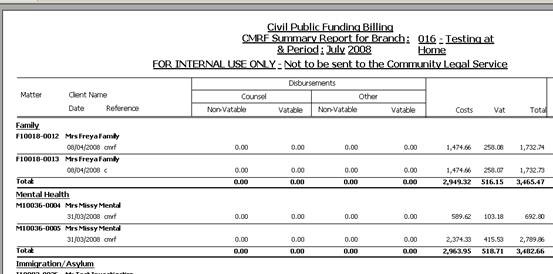
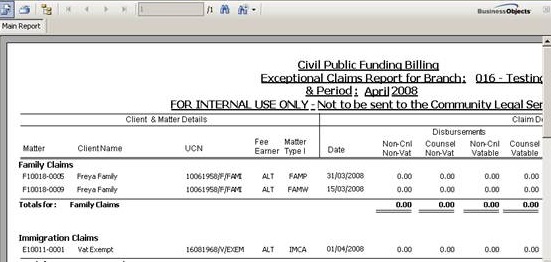
If any of your claims have been exceptional, when you save the Internal Summary report the system will produce an Exceptional Claims Report. This report is for your use only and gives full details of each exceptional claim included on your CMRF. Print off the required number of copies and then save it to history in the same way as you have your previous reports.
Once all the reports are saved to history, the system will move the month on in readiness for producing the following month’s reports. By saving the reports to history the XML file is automatically generated and saved centrally on your server. Your IT administrator should be able to locate the LCS folder in the central documents folder and create a shortcut on your desktop to enable you to easily browse to the location when you upload the XML to the Legal Aid Agency.
Each of the above reports will be stored on the Claim History tab under Document History and can be opened at any time by double clicking on them.
The Previous Claims tab displays a record of when a CMRF and CMSF and associated reports has been produced and saved on the system. The status of the claim is also shown here.
The Ref column shows the month/ year that the CMRF and CMSF have been produced for.
The Status column shows whether a claim has been cancelled or not.
|
© Advanced Legal, Mar 2016 • Terms of use • Contact us |
|