|
|
|
|
The ribbon replaces traditional top-level menus and toolbars with groups of related commands, making them easier to find and use. It provides convenient access to common operations such as creating new records, searching, and posting accounts transactions etc.
The ribbon is also contextual—tabs appear only when you are working on a specific task. For example, the commands available in PMS are different to those in Diary. This eliminates the need for many different toolbars and allows you to find commands efficiently with fewer clicks. The tabs you can expect to see are:
The File tab is coloured blue and is always located in the upper-left corner. When you click it, you have quick access to a menu which contains every command shown on the ribbon.
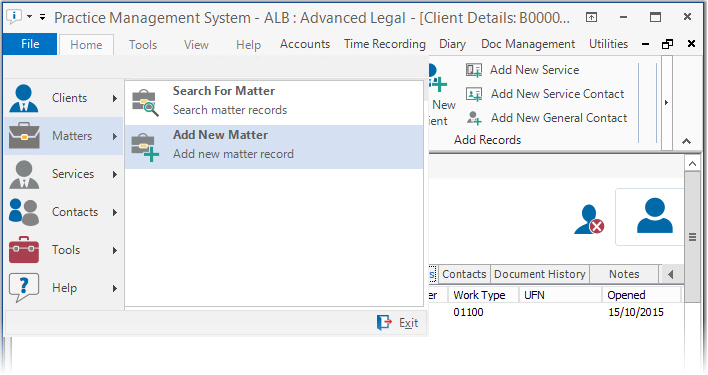
The Home tab provides access to the most commonly used commands in the application. For example, in PMS, searching for clients, adding new matters, etc. It is always located next to the File tab.

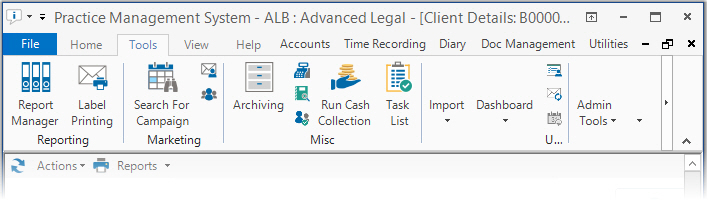
The Tools tab only appears in PMS and Accounts. It comprises helpful commands related to the what you are doing now. For example, in Accounts, you can calculate interest or print statements, but in PMS you can view outstanding tasks or transfer matters, etc. Some commands are available in both areas to make navigation easier.
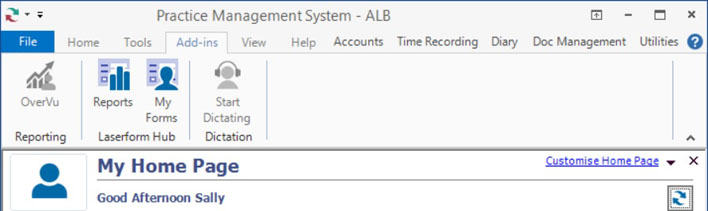
The Add-ins tab appears in PMS only. It has tools which allow quick access to the OverVu, Laserform Hub and BigHand dictation add-ins. The tools will only be active if you have the relevant integrations set up on your system.
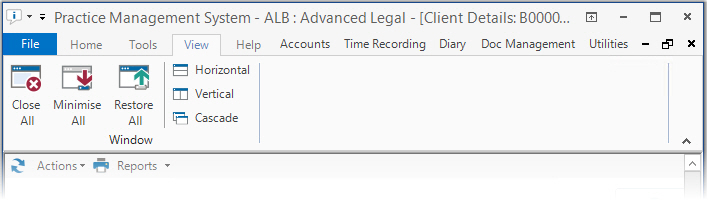
In PMS and Accounts, the View tab contains useful commands for organising the different windows you may have open, e.g. Client Search, Client Details, Matter Details, etc. However, in the Diary, the View tab provides commands for changing the display of the calendar.
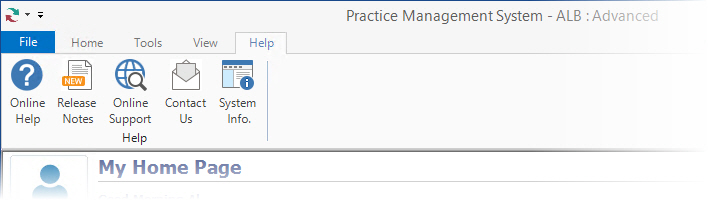
The Help tab allows you to access the documentation for ALB and view important support/contact information.
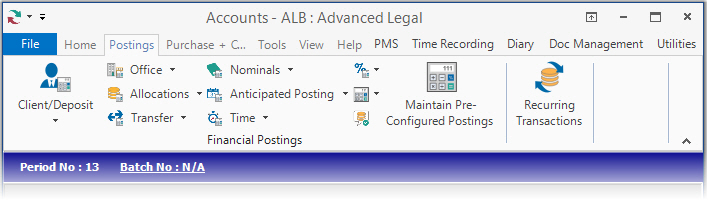
The Postings tab only appears in Accounts. It contains commands for every financial posting available in ALB.
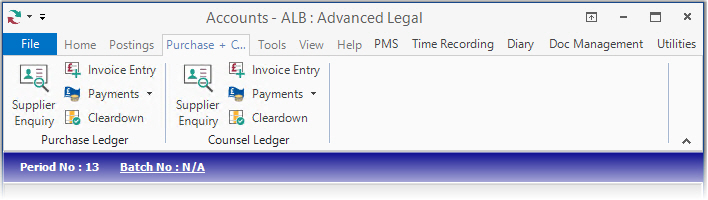
The Purchase + Counsel tab only appears in Accounts. It provides access to the Purchase and Counsel Ledgers and the associated payments and tasks.
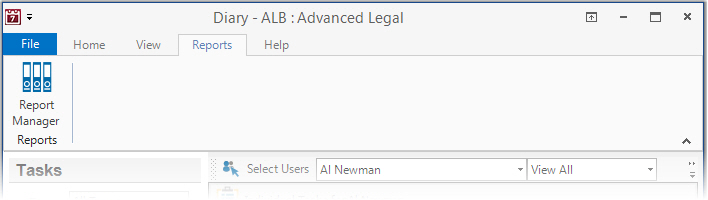
The Reports tab only appears in Diary. It provides access to Report Manager.
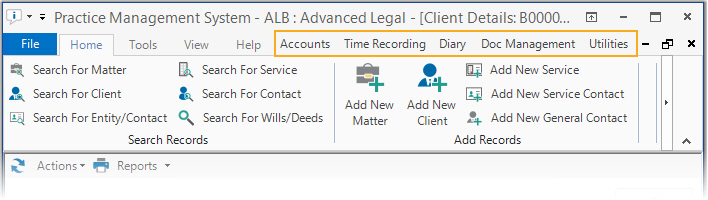
The tabs above always appear on the left-hand side of the ribbon. However, depending on your permissions, the right-hand side contains a series of additional shortcuts to the other parts of ALB. This allows you to quickly open the other ALB components such as Accounts, Time Recording, etc.
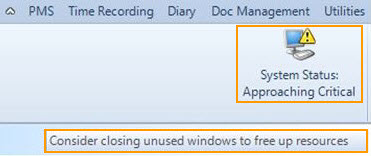
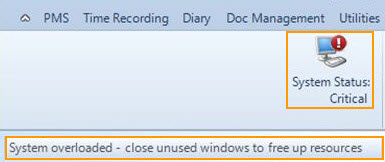
There are two icons that display in the top right-hand corner of the PMS and Accounts screens to warn when the system resources are approaching or in a critical state regarding memory usage. In both case the ToolTips recommend closing any unused windows to free up resources.
When the system is approaching a critical state the following icon is displayed, which shows the ToolTip when your mouse is moved over it.
When the system is in a critical state the following icon is displayed, which shows the ToolTip when your mouse is moved over it.
|
© Advanced, Jun 2018 • Terms of use • Contact us |
|