Log into ALB

ALB comprises 6 individual applications - the main one being Practice Management Suite (PMS). Logging into PMS provides access to all the applications, but depending on what you are working on, you may open the other applications separately, i.e. without opening PMS. System administrators also have the option to switch between live and test databases when they log on.

To log into PMS:
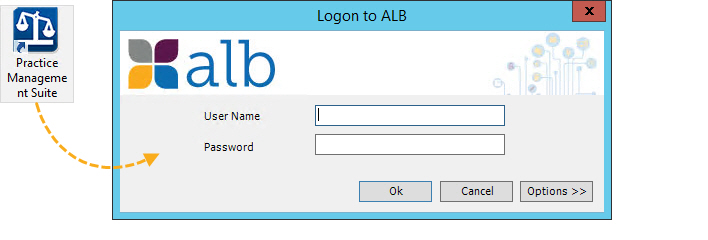
  1. Double-click the PMS icon on your desktop. The Logon to ALB dialog box opens, prompting you for your login details.
  2. Type your User Name and Password and click OK.
  3. When PMS opens, you can access all parts of ALB for which you have the appropriate permissions.

To log into individual applications:

  1. Double-click one of the icons below on your desktop.
  2. When the Logon to ALB dialog box opens, type your User Name and Password and click OK.
  3. When the application opens, and with the exception of Accounts, you cannot directly access any other application.

To switch databases (administrators only):

  1. On the Logon to ALB dialog box, type your User Name and Password as normal.
  2. Click Options >>. There will be a short delay while your system checks for a list of valid servers and databases.
  3. In Server and Database, select the server and database you want to connect to and click OK. ALB opens, connected to the selected database.
Notes
  • ALB requires that you have a valid, current licence. If not, you will still be able to log in but you will be prevented from creating new clients and matters. If this is the case, you will need to contact your system administrator. For further details on ALB licencing, please refer to Licencing and activation.
  • Logging into PMS or Accounts allows you to open the other applications directly from the ribbon. However, logging into Diary, Document Management, Time Recording, or Utilities does not allow you to directly open any other application.
  • Designer Studio is also available. This is an add-on application, which allows your developers to build custom workflow to automate business processes. If your firm has purchased this, then you will also see a Designer Studio icon on your desktop. If you would like to know more about Designer Studio, please call 03300 602102.