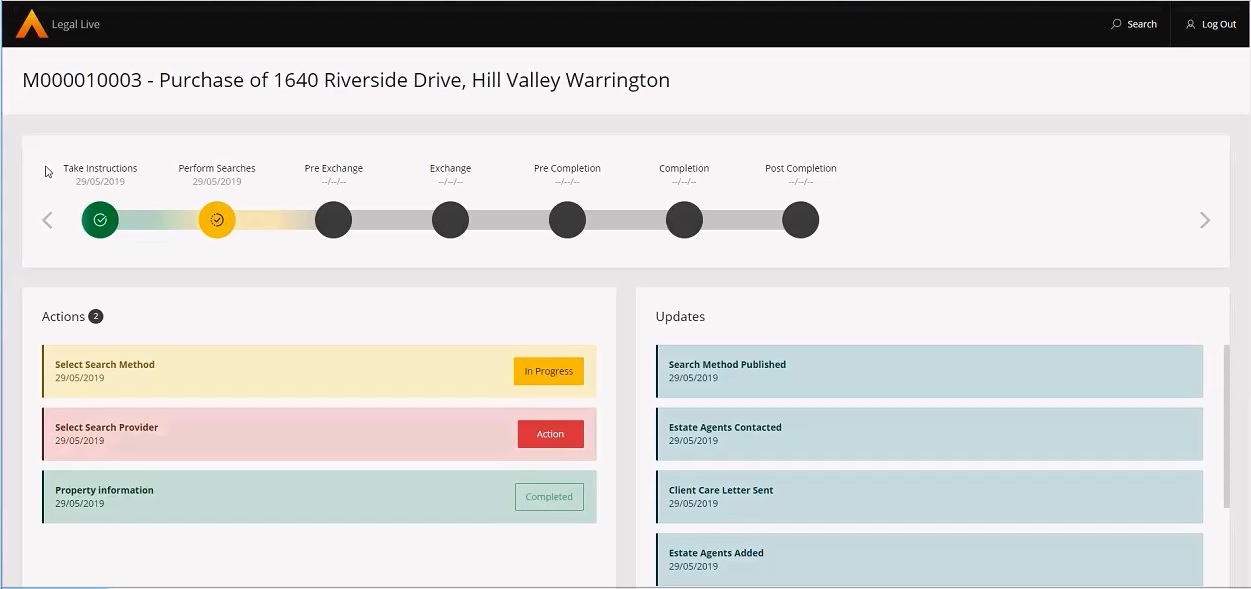
To access Legal Live,
you will need to give your clients the Legal Live
URL to enter into their browser. This is determined by the location where
Legal Live was installed.
- Enter the Legal Live URL
into your browser. For example, http://<your
firm’s website>/Legal Live/. However, depending on your installation,
this may be different. If you are unsure, then please check
with Advanced.
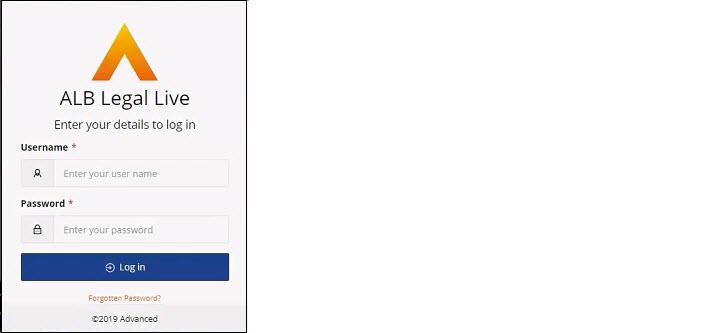
- When the Log
in screen opens, type your Email
and Password (which will be
automatically emailed by ALB
once an online
access account has been created) and click Login.
Note
If you have forgotten your password, there is a Forgotten Password?
hyperlink. This follows a standard password reset, displaying a screen
where you can enter your email address and, providing there is a valid
account, you will receive an email with a link to reset your password.
The Legal Live
Matter Summary or Search page displays. The screen
is responsive, so if you are using a tab or phone, the screen will
display appropriately using icons to display menus and aligning items
vertically.
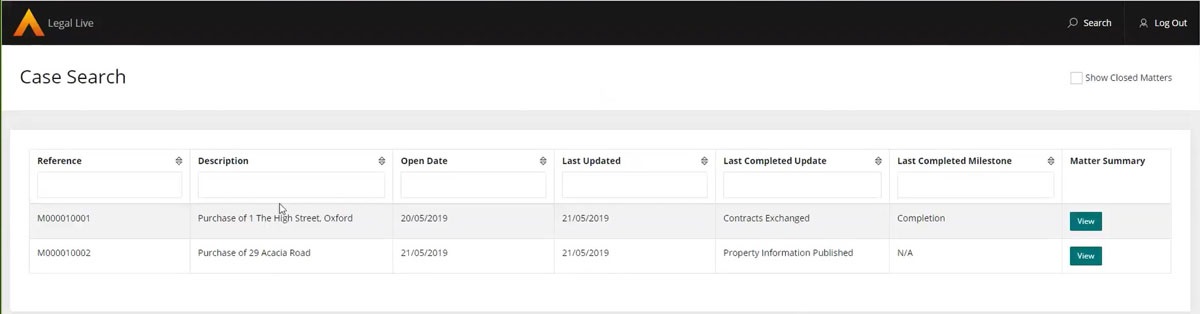
- If the logged in user has multiple matters,
the Search screen displays
with a list of live matters to select from.
Notes
- At the bottom left-hand of
the screen, you can select how many entries you want to
view on each page and move between the pages using the
Next and Previous buttons.
- If you wish to view
closed matters, select the Show Closed Matters check box
on at the top right-hand of the screen.
|
If the user has just one matter, Legal
Live will bypass the Search screen and go straight to the Matter
Summary screen for that matter.