Amend your ALB profile
System administrators set up users in Utilities. You can then view your
user profile in the User Details screen accessible via the ribbon. From
here you can:
- Amend your personal information
or contact details
- Edit supplementary details
- Define your conflict check preferences
- Set your notification preference
- Change your password
- Clear your preferences
To amend your personal information or contact details:
- On the Tools
menu, click My Profile to
open the User Details screen.
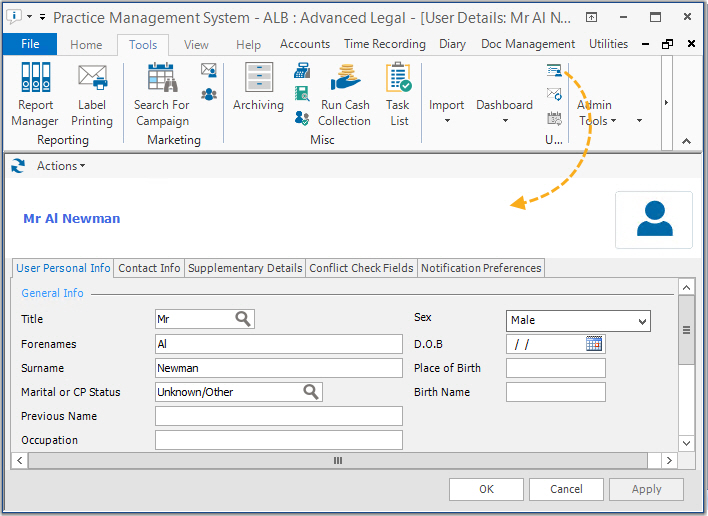
- Click Apply
to save your changes and keep on editing or OK
to save and close the screen.
To edit a supplementary details field:
- On the Tools
menu, click My Profile to
open the User Details screen.
- On the Supplementary
Details tab, right-click the supplementary details field you
want to change and click Edit.
- When the Supplementary
Detail is displayed, amend as required. You can also record
notes here if you wish.
- Click Apply
to save your changes and keep on editing or OK
to save and close the screen.
To define your conflict check preferences:
- On the Tools
menu, click My Profile to
open the User Details screen.
- On the Conflict
Check Fields tab, tick the desired fields.
- Click Apply
to save your changes and keep on editing or OK
to save and close the screen.
To set your notification preference:
- On the Tools
menu, click My Profile to
open the User Details screen.
- On the Notification
Preferences tab, tick Receive
Central Scan Notifications if you want to receive a notification
when a scan has been completed.
- Click Apply
to save your changes and keep on editing or OK
to save and close the screen.
To change your password:
- On the Tools
menu, click My Profile to
open the User Details screen.
- On Actions
menu, click Change Password.
- When the Change
Password dialog box opens, type and confirm your new password.
The password must be at least 8 characters long and include a combination
of letters with numbers or punctuation.
- If you want to be forced to
change the password the next time you log on, tick Require change
at next logon.
- Click OK
to save your changes.
- If ALB
has been set up to require that passwords are changed on a regular
basis, you will be automatically prompted to do this when you
log on to the system.
To clear your user preferences:
You can clear your user defined settings if you need to. Examples of
these settings are screen positions for windows, and the last used My
Home Page element.
- On the Tools
menu, click My Profile to
open the User Details screen.
- On Actions
menu, click Remove Preferences
and then click Yes to confirm
that you want to remove all startup preferences.
Important
Clearing your user preferences will also remove any groupings, sort order
and column choices from dashboards etc.

 to select
from the list.
to select
from the list.
 to select the
date. The user's name will be followed by the word
'Deceased' in search results screens.
to select the
date. The user's name will be followed by the word
'Deceased' in search results screens.