|
|
|
|
|
|
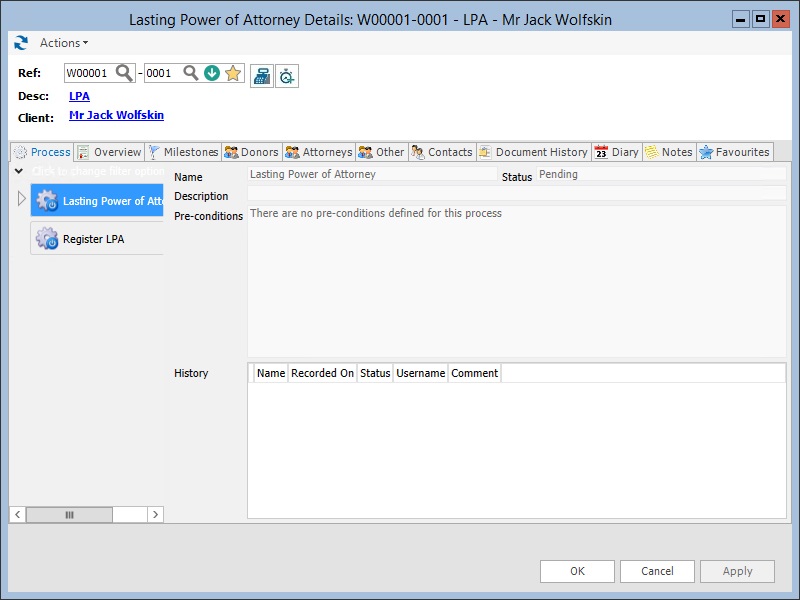
Once LPA has been attached to a matter its master process must be activated before it can be run and subsequent tasks generated. This can be done manually or it may happen automatically if your developer has created a workflow to do it without any interaction from you.
To manually activate and run LPA:
Fig. Process tab
 .
The status of the process will change from Waiting
for activation to Ready.
You can now run the process.
.
The status of the process will change from Waiting
for activation to Ready.
You can now run the process. to
start the first process — Instructions for LPA.
This is always the first process to be run in LPA.
See Instructions
for LPA.
to
start the first process — Instructions for LPA.
This is always the first process to be run in LPA.
See Instructions
for LPA.
|
© Advanced, Dec 2020 • Terms of use • Contact us |
|