|
|
|
|
Text Boxes are user defined fields which may be added anywhere on current form page. They "float" above the page and so will mask any text or fields they overlap when printed. (If you wish to add non-printable text to a form please use the Screen Notes feature.)
Please be aware that, because of the differences between the screen and print dimensions, when a form is printed the text box position relative to the rest of the form may not be exactly as it appears on screen. Therefore it may be necessary to adjust the positioning of the text box by trial and error to achieve the desired result.
 Text Box.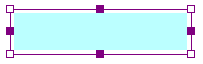
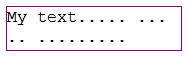
When you click away from a text box it becomes inactive and displays with a white background and solid border:
Text Boxes and Form Expandability
Note that it is not possible for text boxes and form expansion to coexist in the same form.
Therefore adding a text box to a form will disable the expandability features in that form. Conversely, it is not possible to add a text box to a form which has already expanded.
The expansion status of the current (open) form is indicated in the status bar.
|
© Advanced, Mar 2021 • Terms of use • Contact us |
|